Basic V4 Training for Membership Support Administrators

Logging in and navigating your V4 home screen
As a Membership Support Administrator (MSA), your journey with the V4 system begins with a secure login. It's crucial to understand your designated access level; you'll be logging in with specific MSA credentials, not as a super user, which ensures you operate within the appropriate permissions for your role. Once logged in, you'll land directly on your Home screen, which serves as your central navigation hub for all daily tasks.
Logging into the V4 system
Once you have received your initial email from Neighbourhood Alert, you will be provided with a temporary password. Log in by going to https://admin.ourwatchmember.org.uk.
-
Enter your email address
-
Paste your temporary password (you will only need to do this the once)
-
The system will ask you to create memorable answers to three questions:
-
Memorable place
-
Memorable year
-
Memorable word
-
-
You will also be asked to create your own password
-
When you have done this, next time you log in you will be asked to answer one of the memorable questions and you will also use the password that you have created.
Your MSA home screen overview
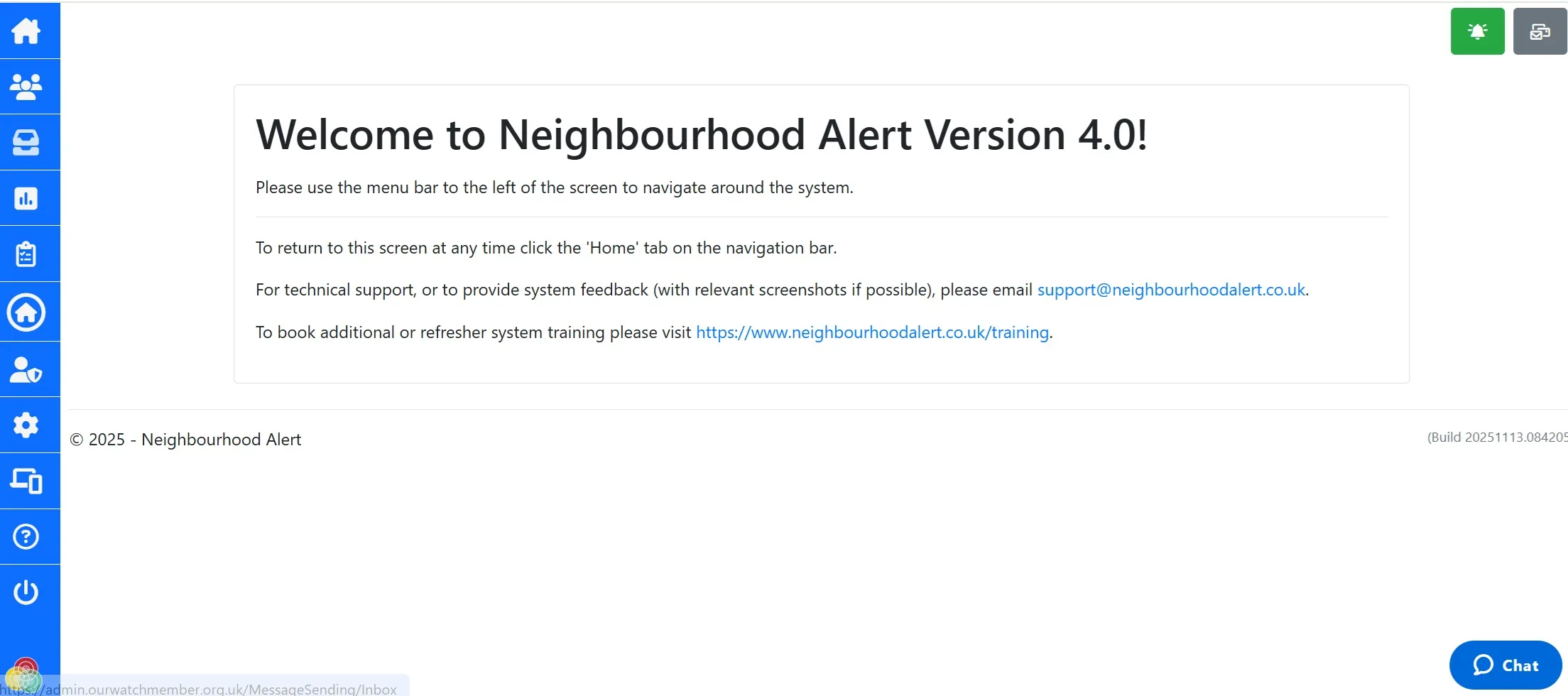
Upon successful login, the V4 Home screen will greet you. This screen is your control panel, providing direct access to essential areas within the system. You'll typically find:
-
Quick links to sections: For immediate access to members, messaging console and Neighbourhood Watch sections.
-
Help section: You may get stuck, which is normal. The help section is easy to access and provides easy step by help..
-
Access to reporting: Get access to KPI reports and others in the dedicated reports section
Familiarizing yourself with this layout will significantly enhance your efficiency and help you locate critical information swiftly.
Sourcing support within V4
Even the most experienced MSAs sometimes need a little help. The V4 system is equipped with several resources to ensure you can find assistance whenever you need it. Knowing where to locate these options can save you valuable time and keep your workflow smooth.
-
Chat Function: Look for a chat icon, often in the bottom corner or a prominent spot on the screen. This allows you to connect with support staff in real-time during working hours for immediate queries.
-
Help Section: A dedicated 'Help' or 'Support' link, usually found in the main navigation menu, provides access to comprehensive guides, FAQs, and troubleshooting articles.
-
Email Support: For non-urgent issues or inquiries that require detailed explanations, an email
This email address is being protected from spambots. You need JavaScript enabled to view it. is available, allowing you to send your query directly to the support team at VISAV.
Where can you find real-time support in V4?
What resource offers support guides and FAQs?
How do you contact support for non-urgent, detailed inquiries?
What is the primary function of the V4 Home screen?